In this blog you will learn how to make an attendance sheet in Excel in a very easy way and at the end you will also learn how to create attendance sheet automatically in Excel using software
Why Use Attendance Sheet in Excel?
Making an attendance sheet in Excel is useful because you have data on each login and logout times.
- Attendance can be easily tracked
With all employee data in a single Excel and you can easily see who is absent and who is present.
- Work hour calculations
You can use a daily formula for work hour calculation where you remove the lunch break from the total work time to calculate the exact work hours.
- Flexible layout
Once you have all the data in Excel it helps you with payroll calculations.
Note: If you are handling a large team maintaining data manually in Excel can be risky and very time wasting.
Steps to Make Attendance Sheet in Excel
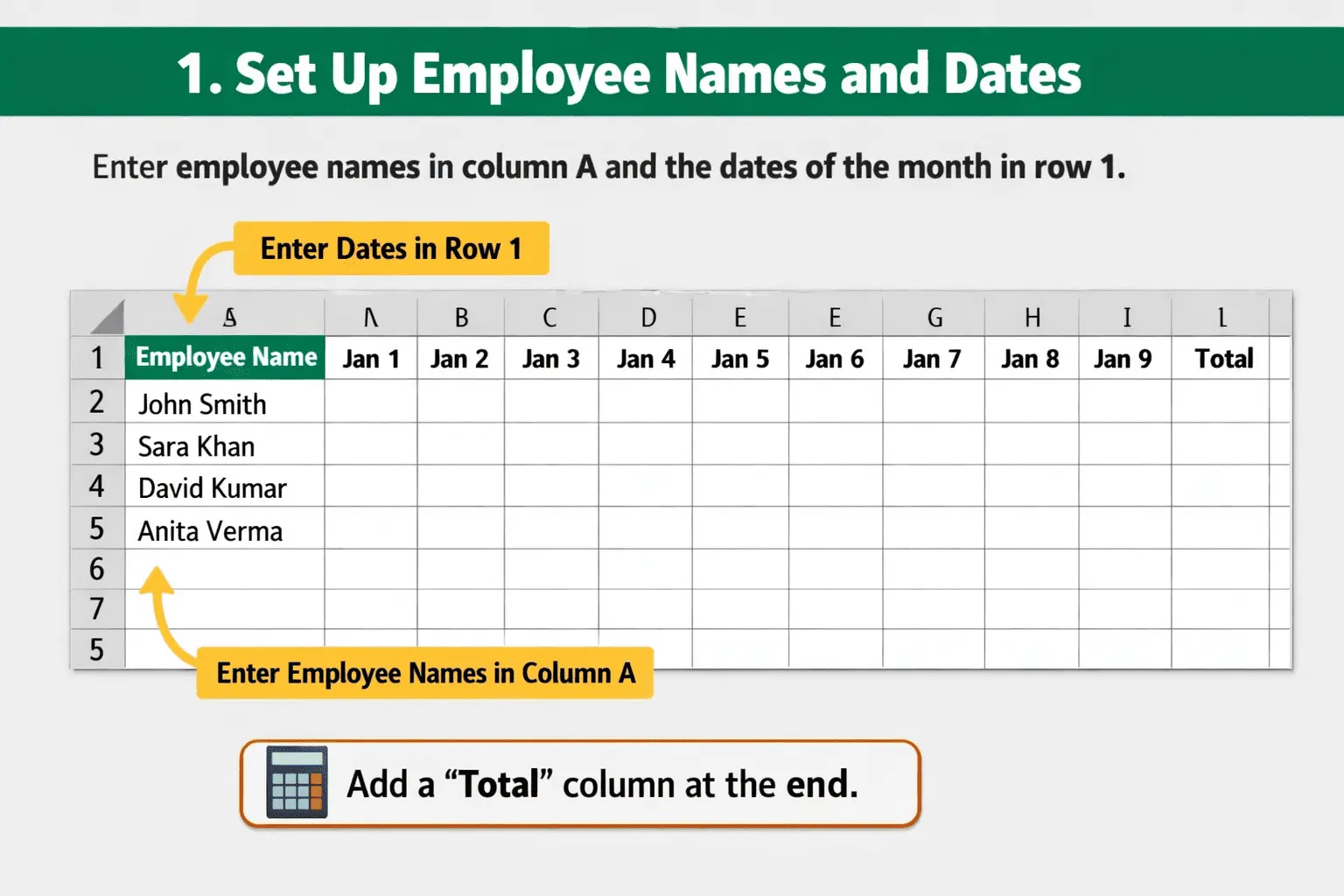
- Set Up Employee Names and Dates
Enter employee names in column A and the dates of the month in row 1 and add a total column.
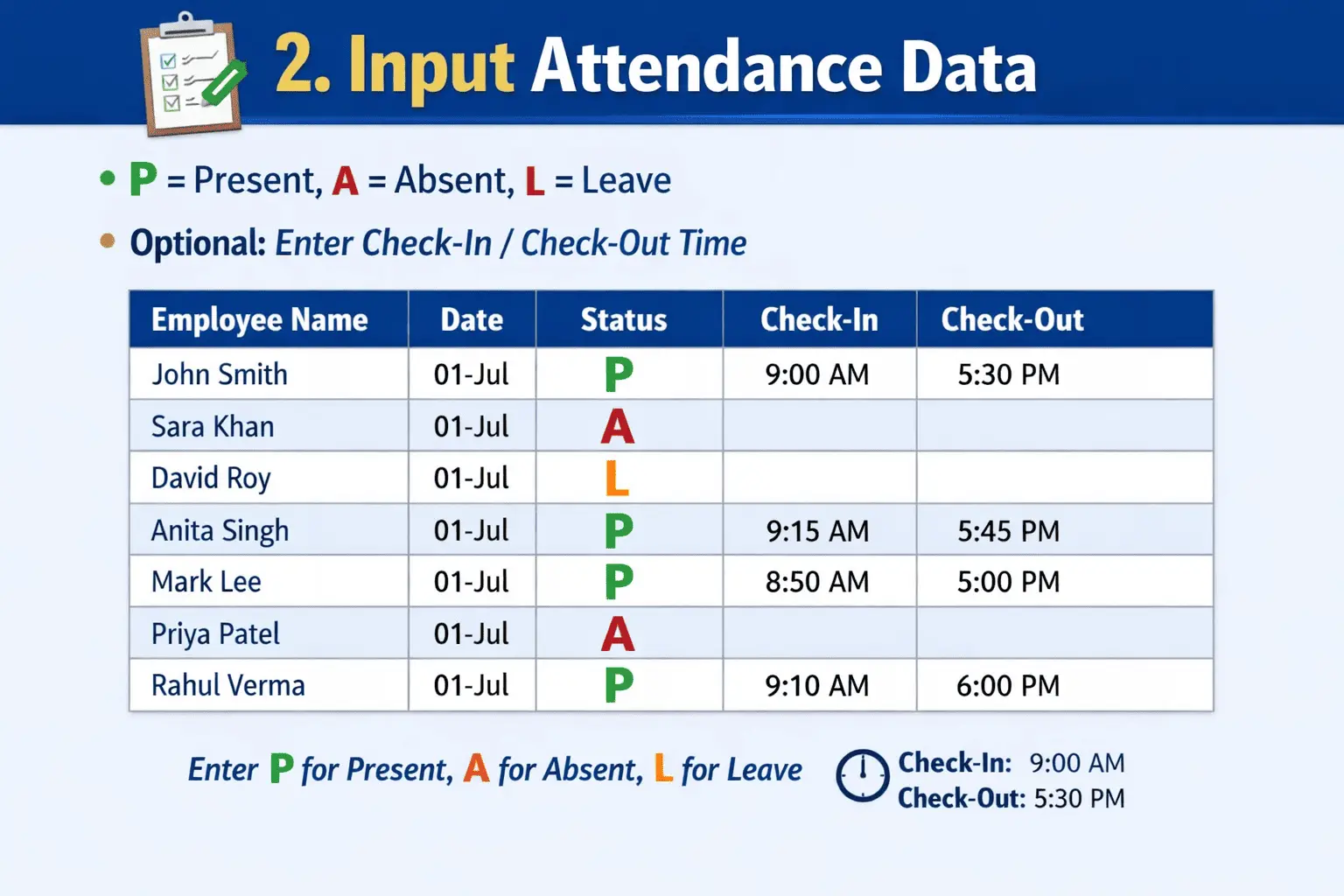
- Input Attendance Data
Mark the attendance for each employee in excel like P stands for present and A stands for absent or L stands for leave. Optional you can also enter check-in or check-out times
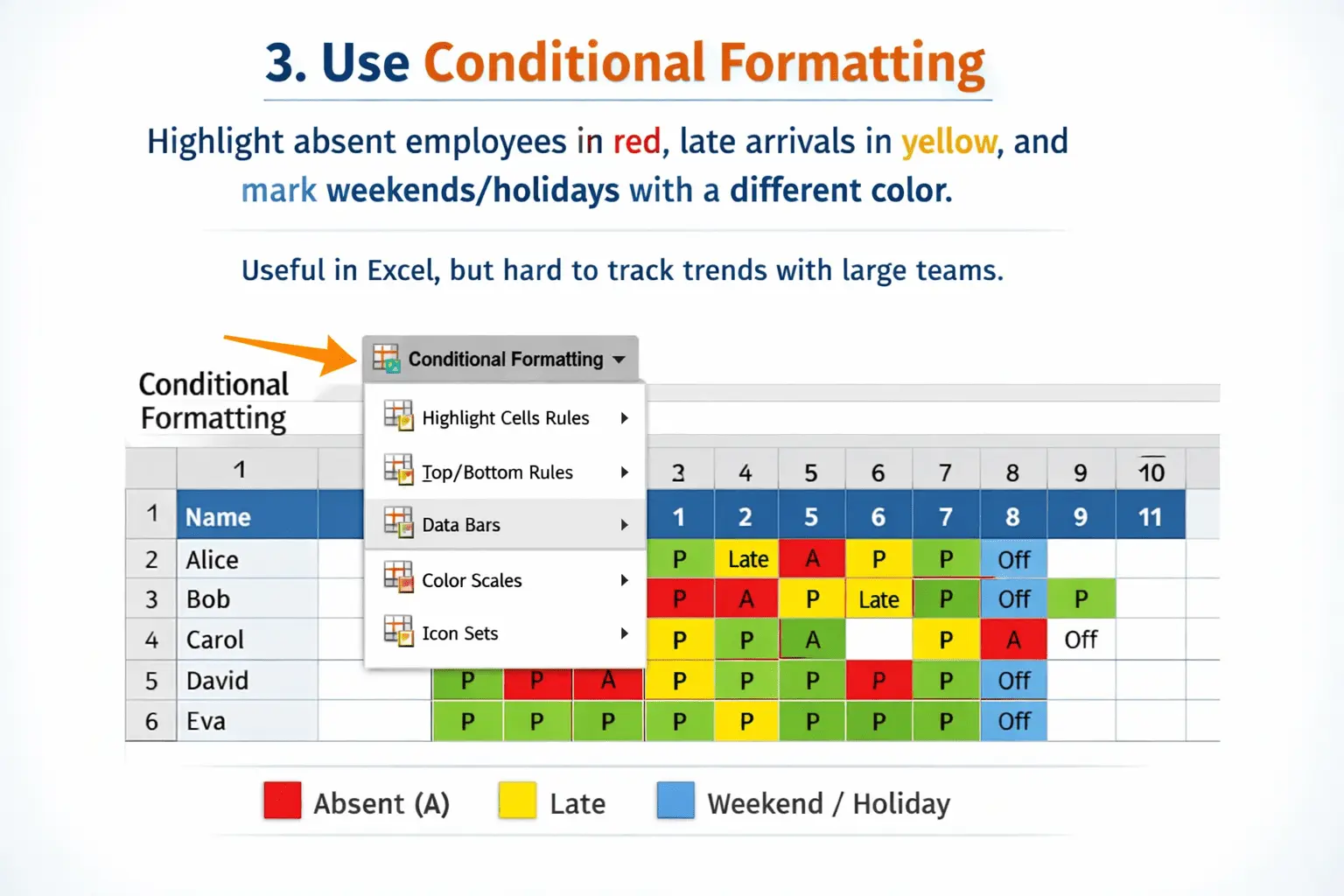
- Use Conditional Formatting
Highlight absent employees in red and those who arrived late in yellow and mark weekends/holidays with a different color. This is helpful in Excel but tracking trends becomes difficult with large teams.
Now you understand that you must follow all these steps to create the attendance sheet in Excel and it will also take more time.
Tips for Making Attendance Sheets in Excel
- Always keep the top row frozen so dates remain visible
- Mention weekends and holidays and highlight them in advance to avoid any confusion
- Check the formulas you have used to ensure attendance is calculated correctly
- If you already have a template, use it first
Common Problems in Excel Attendance Sheets
- Manual entry mistakes
- If you do not deduct lunch time it causes problems in calculating actual work hours
- Overtime is not properly recorded in Excel, which causes problems with payroll.
- Maintaining attendance for a large team in Excel is quite difficult because the manual entry process is time-consuming and increases the chances of errors.
You have probably learned how to create attendance sheets in Excel but it’s very time-consuming because it’s done manually and mistakes are common. This method is only for small companies with just 5 or 10 employees. If you’re an HR professional in a large company creating attendance sheets manually in Excel is an impossible task.
Say Goodbye to Manual Attendance with WorkDesQ
You can use WorkDesQ’s attendance tracking software which is suitable for companies of all sizes and reduces the need for manual attendance tracking by HR and saves a lot of time. It will provide you with the attendance data in a downloadable Excel format which you can download with a single click.
Complete Multiple Tasks in a Single WorkDesQ Form
This is the best way to easily download data in Excel format using the software. You will need t fill in some details in the tool once
- Employee name
- Working shift timings
- Date
- Department or role
- The date range for which you need the attendance data in Excel format
You just need to fill in these few things once, and then it will automatically track the employee’s attendance. This way you can create an attendance sheet in Excel that is completely automated. For more information, please contact our team.
Conclusion
Now you have learned how to create an attendance sheet in Excel using formulas and you also know whether the manual method or the software approach is better. I would like to tell you about some of the advantages of using software
- No mistakes occur
- The entire system runs automatically
- It saves HR time
- It works well for teams of all sizes
- It creates attendance sheets in Excel easily, which you can then download.