See Productivity in Real Time.
Monitor employee activity, track work hours, and improve team efficiency with powerful insights.
Improve employee tracking with productivity reports templates designed for HR teams and managers. These Excel templates help you measure employee performance, analyze productivity trends, and reduce manual reporting errors.
Instead of relying on long meetings and manual data collection, you can use structured templates to get accurate, real-time performance insights.
After using productivity reports templates, you can:
- Measure productivity trends
- Identify performance gaps easily
- Improve employee accountability
What are Productivity Reports Templates?
Productivity reports templates are pre-designed documents used by HR managers to track employee performance. These documents help companies ensure that employee productivity is accurately tracked and data is not skewed. Productivity report templates include:
- Employee Information
- Work Summary
- Tasks Completed
- Hours Worked
- Productivity Metrics
- Manager Feedback
Instead of creating reports from scratch each week, managers use productivity templates, enter data into them each week, and manually create reports.
Importance of Productivity Reports Templates
Companies face many problems when checking employee productivity. Managers usually depend on the following
- verbal updates
- scattered spreadsheets
- email progress reports
- frequent status meetings
All of these can lead to reports being poorly prepared, and managers often use productivity report templates to ensure they are prepared correctly.
Top Benefits of Productivity Report Templates
When HR professionals or managers use ready-to-use productivity templates, they experience several benefits, including:
Improved Accountability
When employees’ work is documented and they know their work is being tracked, they become more accountable.
Helps with Decision Making
When you have complete productivity documentation, you can easily make decisions and provide feedback, as documentation serves as evidence of productivity.
No Need to Create Daily Reports
Managers already have productivity report in Excel format and they do not need to create daily report from starting .Manager needs to update sheet daily
Why Use Excel for Productivity Reports
- Excel is available to everyone and is already installed on most laptops and computers
- You can create separate tabs for each employee.
- You can also draw charts and graphs to understand productivity reports
- You can easily share it with anyone via email or cloud storage
Free Productivity Report Templates (Excel Download)
To make productivity tracking easy here are free Excel productivity report templates you can use in your companies by download
1 Daily Productivity Report Template
- Date column
- Employee name
- Which department the employee is in
- When does the employee start work
- When does the employee finish work
- How many hours worked
- What is the status of the work
- There is a column for HR and manager comments
You can easily download it here.
Download (Daily Productivity Report Template)
2 Weekly Staff Productivity Report Template
The weekly report provides a summary of employee performance for the full week.
- Week
- Employee Name
- Department
- Weekly Goal
- Completed Tasks
- Pending Tasks
- Total Work Hours
- Productivity Score
- Manager Feedback
Download Weekly Productivity Template
- Monthly Productivity Report Template
Monthly reports help leadership to check long term employee performance.
- Month
- Employee Name
- Department
- Total Tasks Completed
- Total Work Hours
- Average Productivity
- Key Projects
- Manager Feedback
Download Monthly Productivity Template
- Employee Activity Tracker Template
- Date
- Employee name
- Project
- Task description
- Start time
- End time
- Time
- Task status
- Notes
Download Employee Activity Tracker Template
- Productivity Dashboard Template
Productivity dashboards help managers see team performance data.
Dashboard Metrics
- Tasks completed
- Work hours
- Productivity score
- Project contribution
- Reporting period
Download (Productivity Dashboard Data Template)
Create a Productivity Report in Excel (Step-by-Step)
Whenever you create a report in Excel you need to follow certain steps and you must follow these steps carefully. Now we will tell you what those steps are.
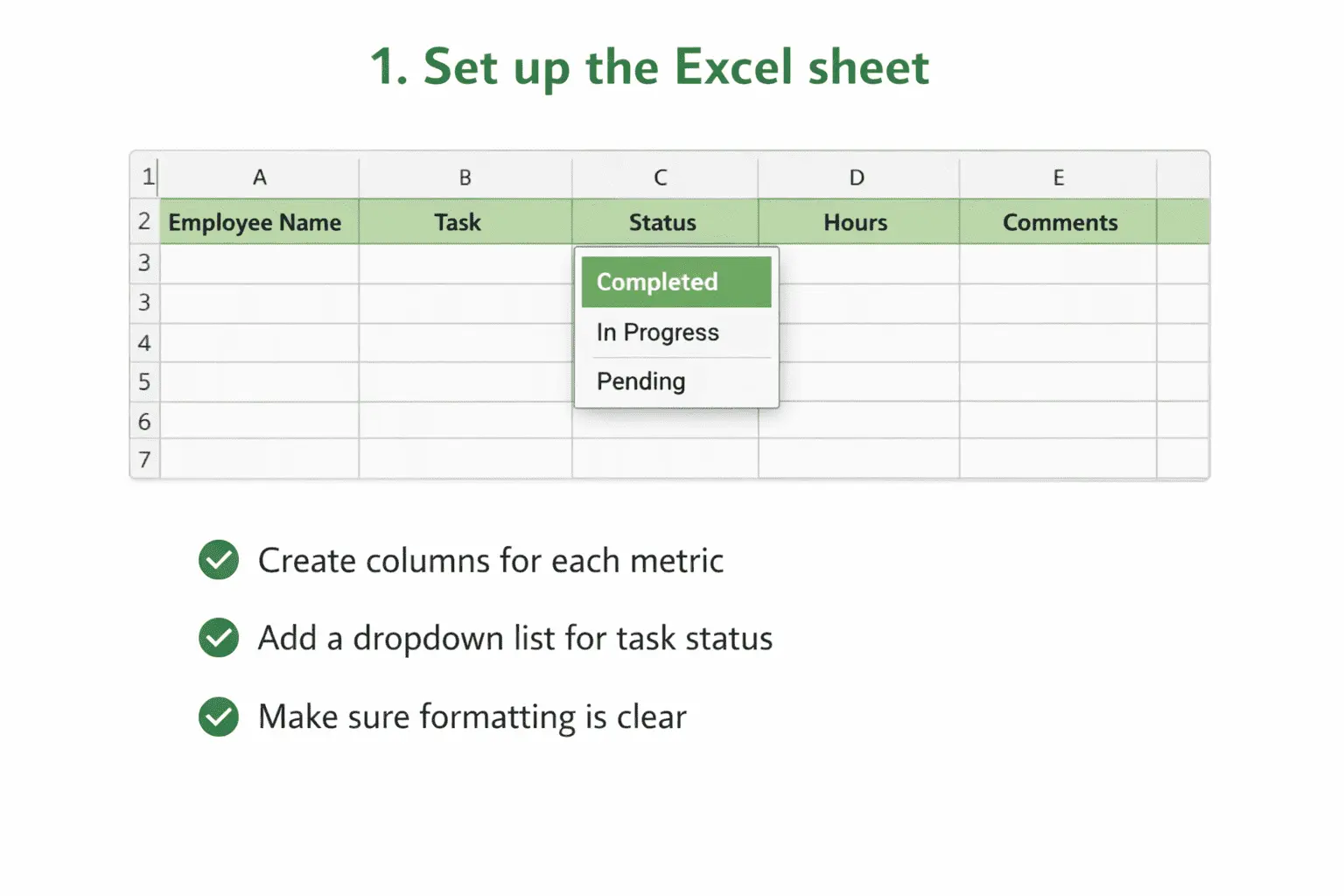
- Set up the Excel sheet
- In this step, you need to open Excel and create columns for each metric
- You also need to create a dropdown list where you will mention the task status, such as (completed/in progress/pending)
- You must ensure that your formatting is clean and readable
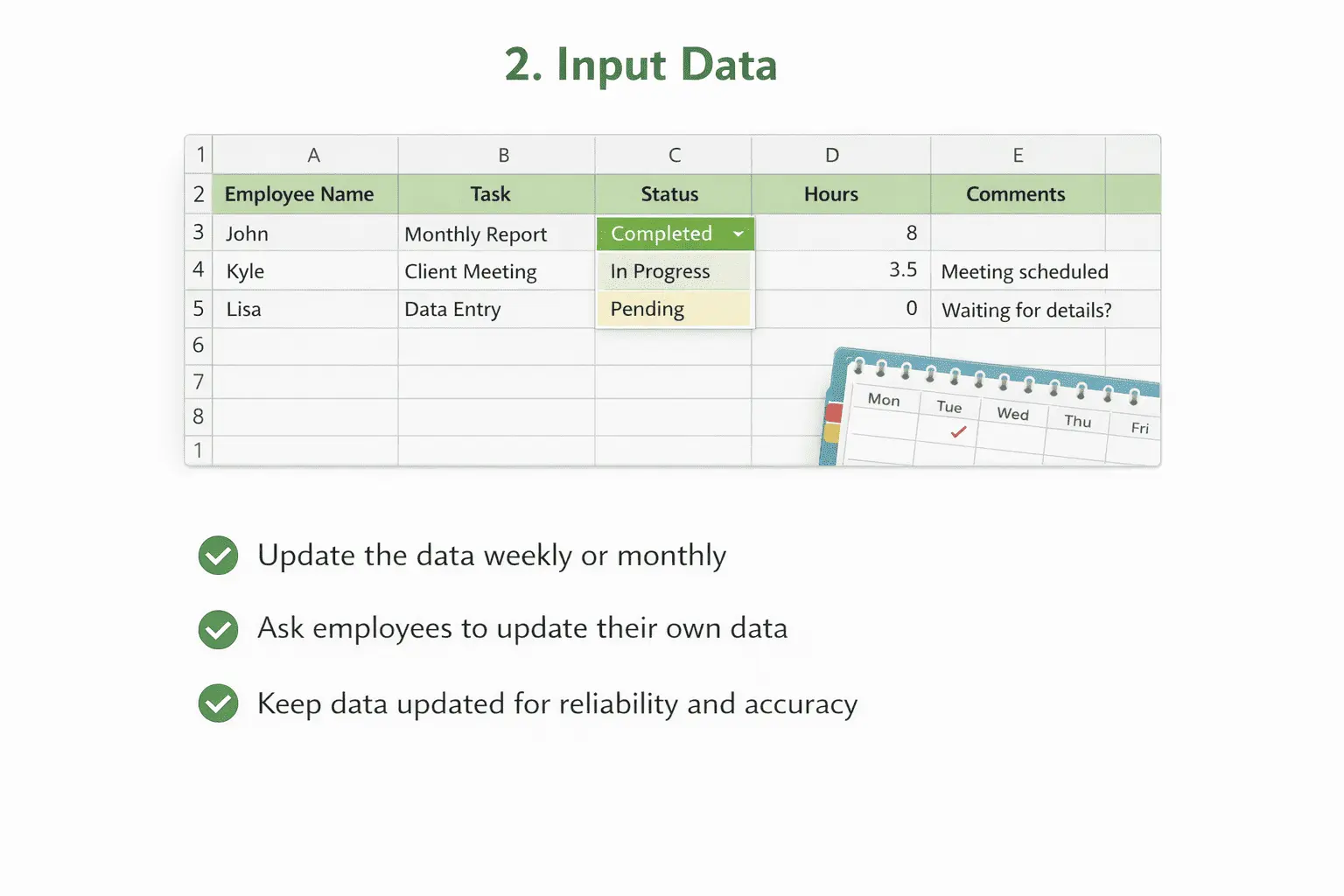
2. Input Data
- Once you have filled in all the important details you should update the data weekly or monthly
- You can also try asking your employees to update their own data, which will make things easier for you
- The data will only be reliable if it is updated regularly because if even one day’s data is not updated the information will become incorrect
3. Add Formulas for Automatic Calculations
- Excel has many complex formulas that can be used to filter data, but it also includes some basic formulas that can be very useful when creating productivity reports.
- Total Work Hours
(=SUM(B2:B10))
- Task Completion %
(COUNTIF(StatusRange,”Completed”)/TotalTasks*100)
- Conditional Formatting
Highlight productivity below 70% in red
With these formulas, you can easily calculate and understand the data, and filter it with minimal effort.
4. Create Visualizations
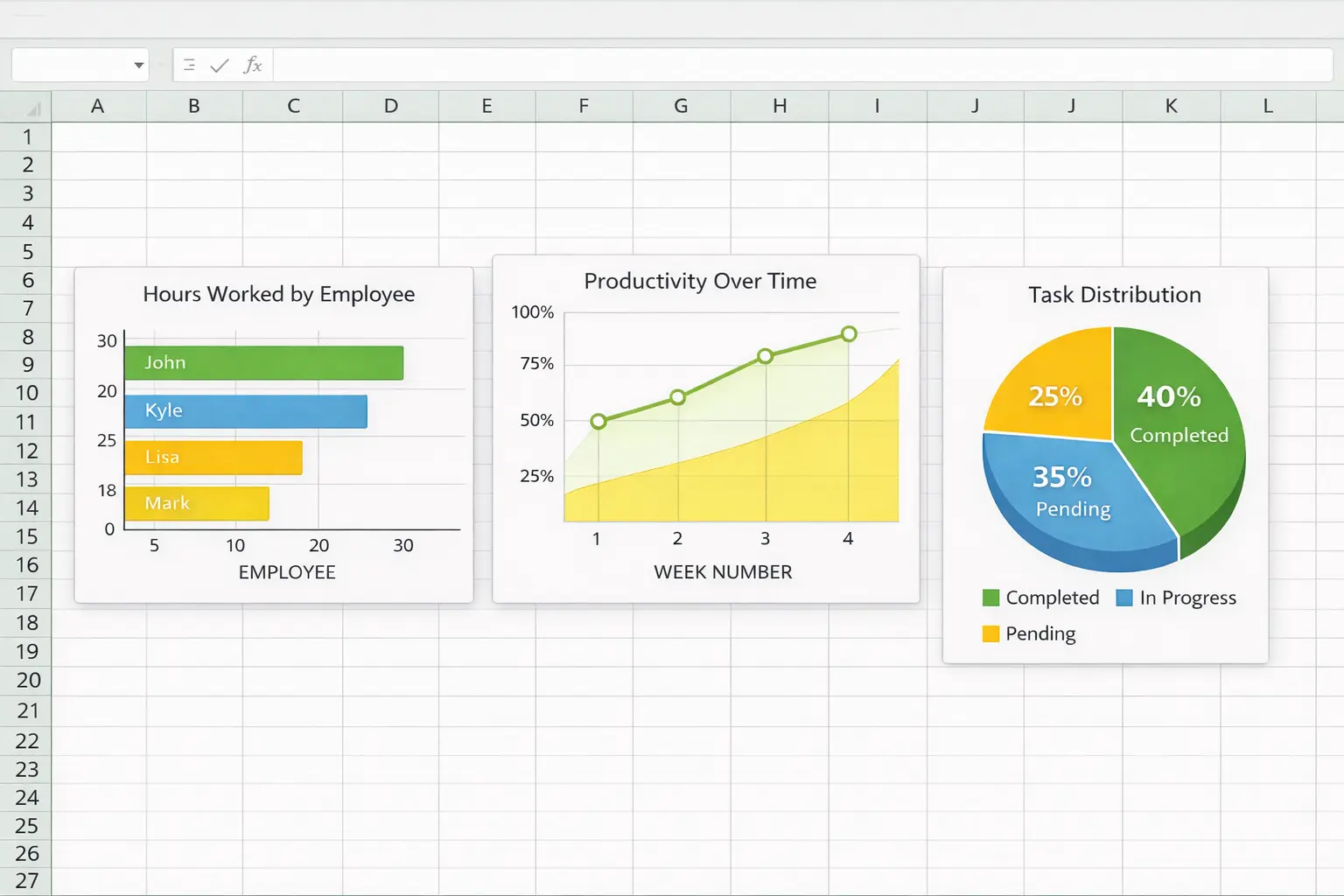
This is an important step in creating an Excel report format because it’s the only step that allows even a layperson to easily understand the report.
- You can create and display bar charts, task completion charts, and charts showing the number of hours each employee worked
- You can also create line graphs to see when employees were productive and when they weren’t
- Create a pie chart, which will make it easier for you to understand how many employees are working on each task
Managers also review these reports because they want to know how their team is performing. This is a crucial step in creating productivity reports in Excel.
5. Save as Template
Once you have created all the reports in Excel, you will need to save the reports as a template so that you don’t have to create the basic metrics again in the future.
- File → Save As → Excel Template (.xltx)
- This allows you to easily reuse it every week or month
- Optional: Protect the sheet to avoid accidental edits
Example of a Productivity Report
| Name | Task | Hours | Productivity |
|---|---|---|---|
| John | 8 | 7 | 92% |
| Kian | 6 | 6.5 | 88% |
| Shawn | 7 | 7 | 90% |
Managers can use these to evaluate employee performance and if you want to know the formula to calculate productivity score, you can read our blog “Formula to calculate productivity score“.
Main Elements of a Productivity Report
| Component | Purpose | Example Fields |
|---|---|---|
| Employee Information | Employee ID | Employee Name, ID |
| Task Tracking | Task Records | Task Name, Project |
| Time Tracking | Work Monitoring | Start Time, Work Hours |
| Productivity Metrics | Performance Score | Productivity, Completion |
These important details help us provide feedback to our managers or address workflow challenges, and you can even copy and paste them directly from our website.
Best Practices for Productivity Reports in Excel
Whenever you create productivity reports in Excel, keep the reports very simple so that anyone can easily understand them. Always keep the reports updated so that you can understand the productivity trends. You can do this monthly or weekly.
- Focus on results. An employee’s work may be slow for a day or two because they are busy in official meetings. So, wait until the project deadline, and a good employee will complete the work.
- Train others to use report templates so they can take over in your absence and keep productivity on track.
Common Productivity Report Mistakes
Many managers use productivity reporting in the wrong way, which disturbs employees.
- Tracking too many employee performance metrics
It’s best for you as an HR professional or manager to track only 6 or 7 metrics; this reveals employee productivity.
- Using the same productivity report templates for everyone
Different roles have different workflows. For example, a developer writes code, and a sales team generates data and revenue. Using the same template for both departments is not recommended.
- Not reviewing reports regularly
Reports are useful when they are read, and managers should analyze weekly or monthly productivity reports to take action accordingly.
Switching from Manual to Software Based Reports
We tried our best to help you solve your problem of creating productivity reports in Excel but when you have a very large team of employees like 5,000 to 10,000 employees and you creating a productivity report in an Excel sheet becomes almost impossible.
Our employee productivity tracker makes productivity reports simple, accurate, and useful. There is no need to make any productivity report templates. Open the WorkDesQ software, go to the reports section, and simply click on export reports. The report will be downloaded in Excel format.
Conclusion on Productivity Reports Templates in Excel
Productivity report templates should clearly display key employee information, such as name, employee ID, department, and job description. Creating reports manually in Excel is time consuming and can sometimes lead to mistakes and prevent managers from making right decisions. You should use our WorkDesQ software which allows you to create productivity reports in Excel format without any mistakes.
If you have a small team, this information will be helpful for you because many small companies maintain productivity reports in Excel, and many HR professionals face problems with this. Our blog will solve this problem for you. Just need to follow a few steps.
To avoid these issues, you can use WorkDesQ software, which helps you generate accurate productivity reports in Excel format without manual mistakes.